What is Git?
Git is a open source distributed version control system that helps to keep records snapshot of your project so you can review changes, undo mistakes, and work with others smoothly.
To use Git, ensure Git is installed on your system. You can confirm by opening a terminal and running:
git --versionIf Git isn't installed, visit the official Git installation page.
You can get start Git using the command line or a visual client (VS Code, GitHub Desktop, Sourcetree). For the rest of the blog I will share example using Git in the terminal.
How git works?
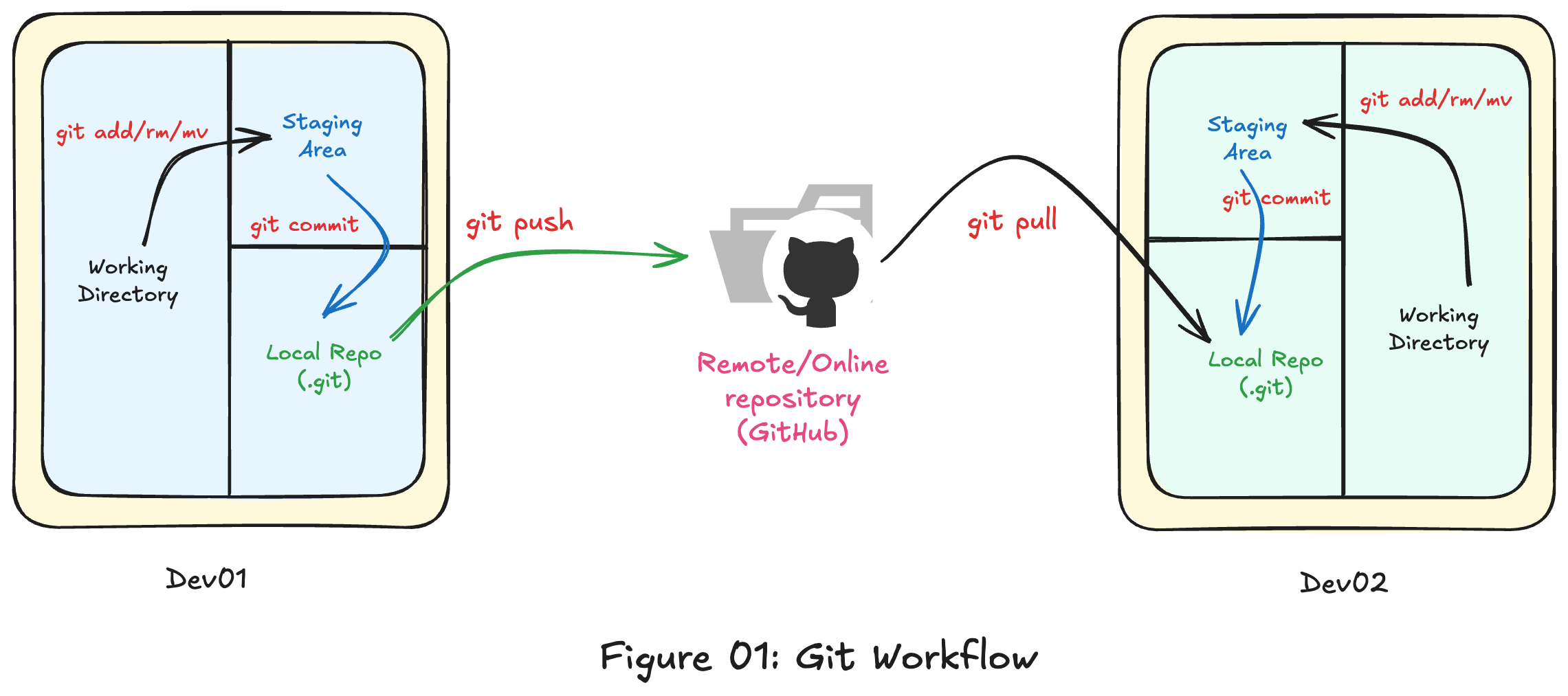
Three main key components:
-
Working Directory : The real folder with your project files. Any edits here are
untracked/modifieduntil you stage them. Use it to write code, delete files, rename etc. -
Staging Area (Index) : The holding zone between the working directory and the repository. Files you
stageare marked for the next commit, letting you pick exactly which changes go in. -
Local Repository (.git) : The hidden database that powers the Git. It stores commits, branches, tags, refs, and object data (blobs/trees), plus config-this is your project's full history.
Note: The following remote repository is optional. However, it's important when you want to share your project remotely.
- Remote Repository (GitHub or Gitlab) : Another copy of the repo on a server (e.g., Github,GitLab). You push local commits to share and fetch/pull to bring remote changes down.
List of everyday uses Git commands:
git init                          # or: git clone <remote-url>
git status                        # what's changed?
git add <.|file>                  # stage changes --> Index
git commit -m "message"           # save snapshot --> repo
git switch -c features/x          # make a branch (safe space)
git merge features/x              # bring it back to main/master
git push                          # share with remote
Additional key components
If you're satisfied with a quick overview, feel free to stop here. If you relay on Git regularly, the topics bellow provide deeper, highly useful context.
- SHA-1 Hash : It's a 160-bit cryptographic hash (shown as a 40-characters hex string) that git uses as the ID for almost everything it stores-commits, trees (folders), bolbs (file contents), and tags. In other words, think of the SHA-1 as the fingerprints for a commit of file in git.
# control abbreviation length
git config --global core.abbrev 12

# hash a file without storing it
git hash-object <file>

# show the full hash of the current commit
git rev-parse HEAD

# see an object by hash
git cat-file -t <hash>  # type
git cat-file -p <hash> # preety- Blob : A blob (binary large object) is just a file content stored in git's database-no filename, no path, no commit info. It's the raw byte of a file, saved once and addressed by its hash.
# see blob IDs for tracked file
# (left col is the bolb hash)
git ls-files -s

# show type of an object
git cat-file -t <blob-hash>

# print the blob's content
git cat-file -p <blob-hash>

# hash a file as a blob
git hash-object <file>

# hash and write the blob into the object store
git hash-object -w <file>- HEAD pointer : HEAD (points where you are in the repo) tells git which snapshot is active; commits update that branch, and switching moves HEAD to another branch or commit.
git status

# prints current branch or "HEAD" if detached
git rev-parse --abbrev-ref HEAD

# shows what HEAD points to (symbolic ref or hash)
cat .git/HEAD

# print target ref if symbolic
git symbolic-ref HEAD

# detached HEAD what or why
git switch --detach <commit-or-tag>

git switch -c debug/experiment # to keep work, create a branch

# reset HEAD
git reset --soft HEAD~1  # soft
git reset --hard HEAD~1 # hard- Repo Metadata : Information about the repository and its history / config-not your project files themselves. Most of it lives inside the hidden
.gitfolder. Bellow is an example of the content inside a.gitrepository:
➜  .git git:(master) tree -d
.
├── filter-repo
├── hooks
├── info
├── logs
│   └── refs
│       ├── heads
│       └── remotes
│           └── origin
├── objects
│   ├── 01
│   ├── 04
│   ├── 06
│   ├── 07
│   ├── 08
│   ├── 09
│   ├── 0a
│   ├── info
│   └── pack
└── refs
    ├── heads
    ├── remotes
    │   └── origin
    └── tags
I hope this post clarified the core concepts of Git. If you found it useful, consider following me for more practical guides. Thanks for reading.